

User settings
Manage your account profile, SSH keys, API access credentials, GPU availability alerts, and email preferences.
Access settings at app.spheron.ai > Settings. The page has five tabs: Profile, SSH Keys, API Keys, Alerts, and Notifications.
Profile
Update account information and preferences.
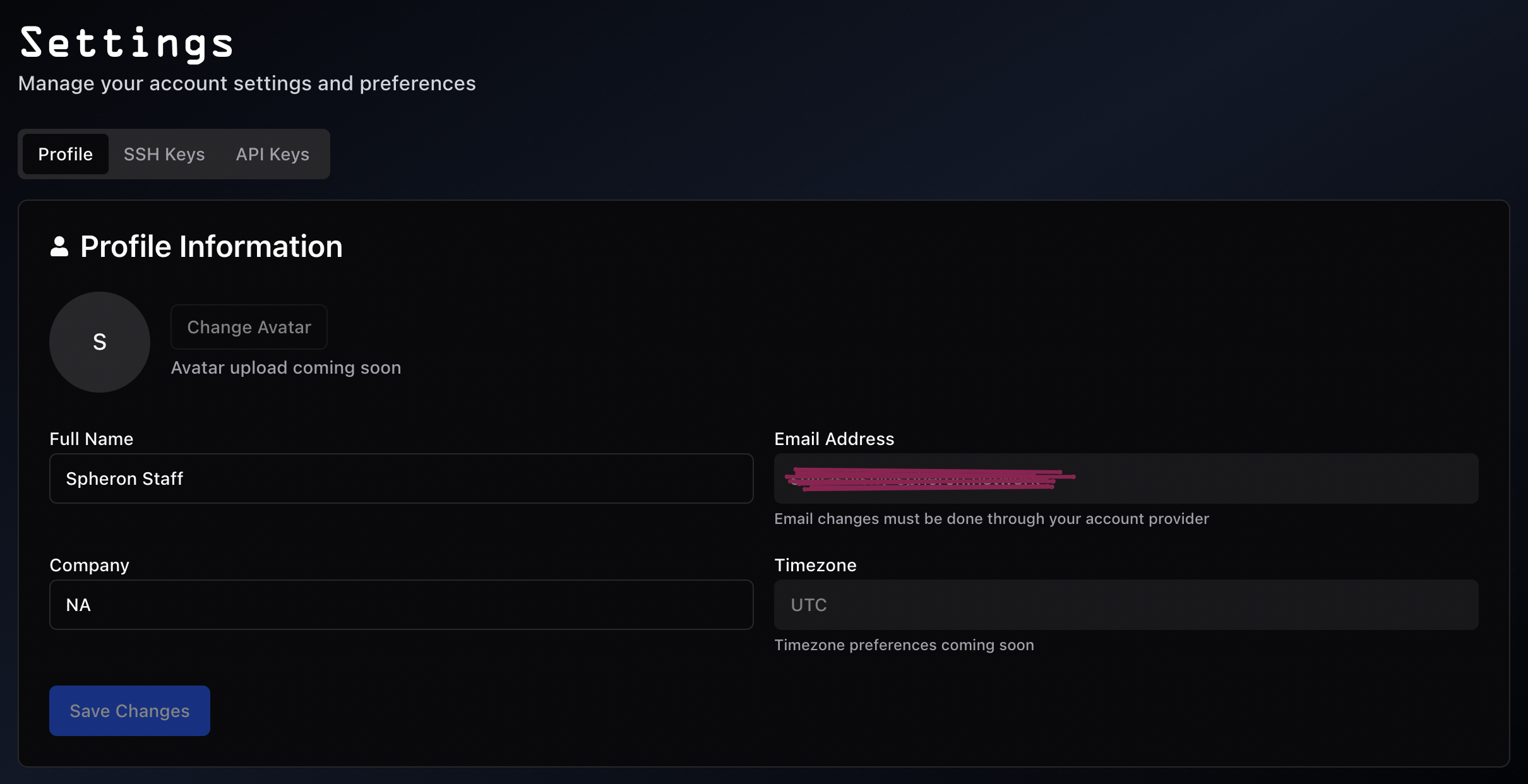
- Full Name: Editable
- Email Address: Must be changed through your OAuth provider (GitHub/Google)
- Company: Optional organization name
Click Save Changes to apply updates.
SSH keys
Manage SSH keys used to authenticate sessions on your GPU instances. Keys are scoped to the current team; switching teams shows a different key set. The header chip displays the total key count for the active team.
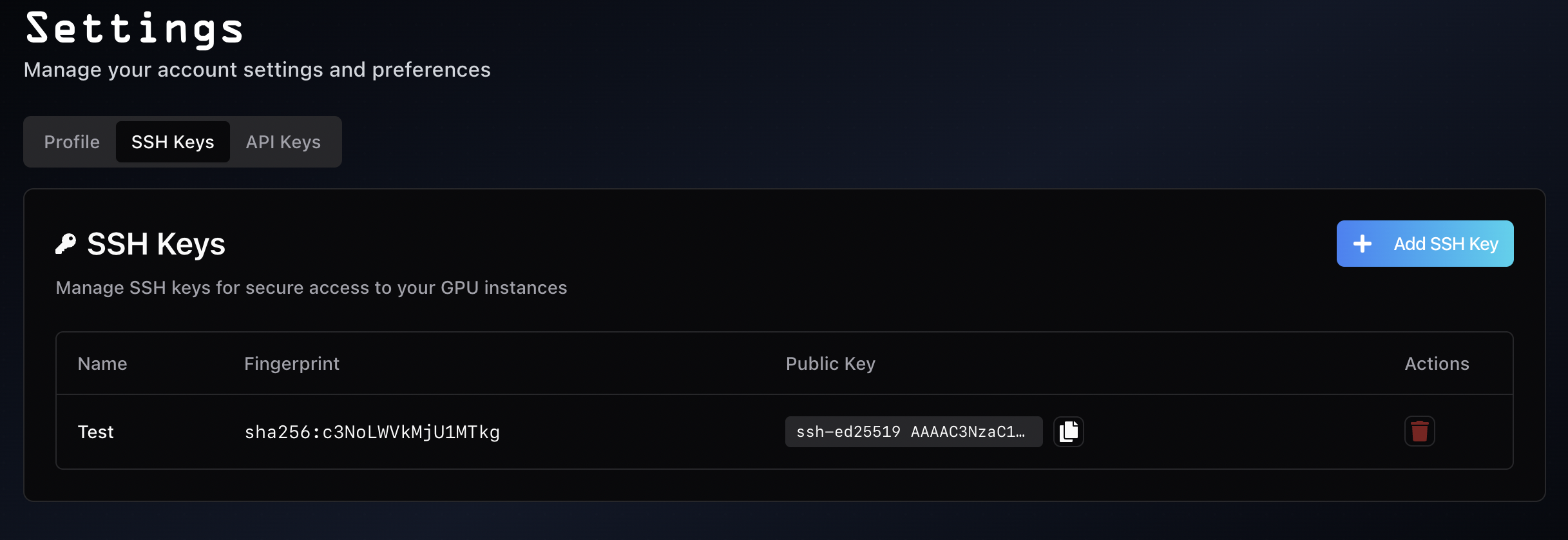
- Key name
- Public key (with copy button)
- Date added
- Delete action
Adding SSH keys
- Click + Add SSH Key
- Enter a key name
- Paste public key content (from
~/.ssh/id_*.pub) - Click Save
# Linux/Mac
ssh-keygen -t ed25519 -C "your_email@example.com"
cat ~/.ssh/id_ed25519.pub
# Windows PowerShell
ssh-keygen -t ed25519 -C "your_email@example.com"
type $env:USERPROFILE\.ssh\id_ed25519.pubSee SSH Connection Guide for detailed setup.
Security: Only upload public keys (.pub files). Never share private keys.
API keys
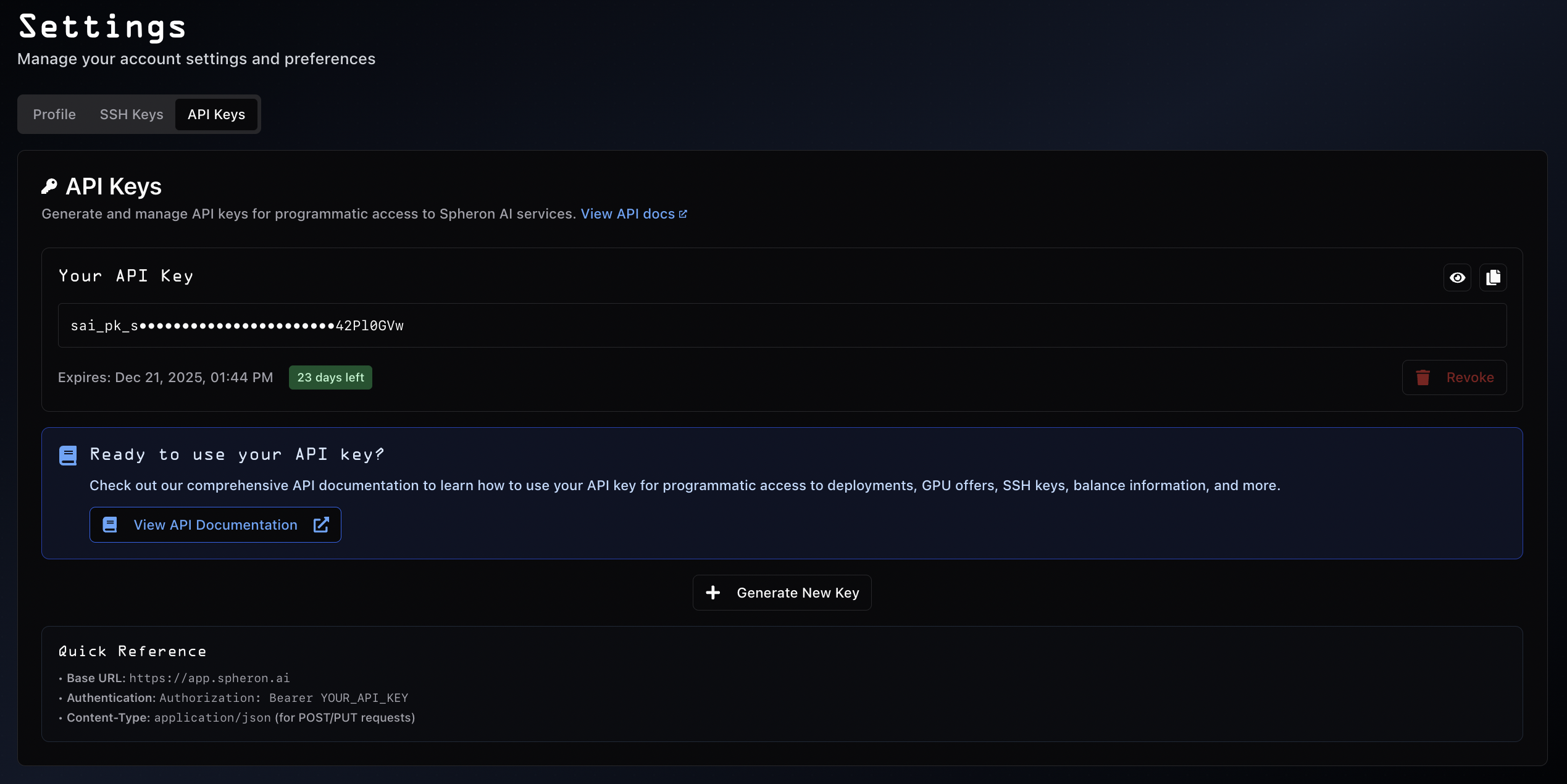
Generate and manage API keys for programmatic access.
Managing keys
Once whitelisted and a key is issued, the Active Key card shows:
- Masked key starting with
sai_(with reveal-and-copy buttons) - Expires date plus a days-left indicator (for example,
320 DAYS LEFT) - Revoke button to invalidate the key immediately
To rotate a key, revoke the existing one and then click + Generate New Key to issue a replacement. Only one API key can be active at a time.
Quick reference
The API keys page also displays the values needed to authenticate API requests:
| Field | Value |
|---|---|
| Base URL | https://app.spheron.ai |
| Auth header | Authorization: Bearer YOUR_API_KEY |
| Content-Type | application/json |
API capabilities
With an API key, you can:
- Deploy and manage GPU instances
- Check GPU availability and pricing
- Manage SSH keys programmatically
- View account balance
- Monitor usage and billing
See the API Reference for complete endpoint documentation and usage examples.
Alerts
The Alerts tab lists your GPU availability alerts. Subscribe to one when the hardware you want is out of stock, and Spheron emails you as soon as it returns.
Create an alert
- Go to Deploy GPUs and find an offer card marked unavailable.
- Click Notify me on that card.
- Confirm the configuration: GPU type, GPU count, instance type (Spot, Dedicated, or any), and provider.
CPU Node offers support alerts the same way. An out-of-stock CPU size shows the same Notify me action in place of the configure flow.
Alert statuses
| Status | Meaning |
|---|---|
| Pending | Waiting for the configuration to come back in stock |
| Notified | The configuration became available and the email was sent |
| Cancelled | You unsubscribed from the alert |
Cancelled and notified alerts can be resubscribed from the same tab. Alerts are a dashboard feature and are not exposed on the API-key surface.
Notifications
The Notifications tab controls which marketing emails you receive. You are subscribed by default.
Turn the toggle off and product and offer emails stop. Account and billing emails always reach you and are unaffected by this setting:
- Deployment succeeded and deployment failed notices
- Low-balance warnings and balance-exhaustion notices
- Payment receipts and auto top-up failures
Every marketing email carries a one-click unsubscribe link that opens this tab directly.
Security best practices
API keys:- Store in environment variables; never hardcode them
- Revoke immediately if compromised
- Rotate every 90 days
- Generate separate keys per environment
- Never commit to version control
- Add keys only from controlled devices
- Remove keys from lost or compromised devices
- Use passphrases on private keys
- Delete unused keys regularly
- Review active keys periodically
- Remove unrecognized keys immediately
- Check key expiration dates
See Security best practices for comprehensive guidelines.
Frequently asked questions
Q: Why can't I change my email?
A: Email is managed through your OAuth provider (GitHub/Google). Update it there first.
Q: How many SSH keys can I add?
A: There is no limit. Add keys for different devices or team members as needed.
Q: What happens when my API key expires?
A: Applications using that key fail. Generate a new key before expiration.
Q: Can I have multiple active API keys?
A: One active API key at a time. Generate a new key to replace the existing one.
Q: Where do I find my SSH public key?
A:- Linux/Mac:
cat ~/.ssh/id_ed25519.pub - Windows:
type $env:USERPROFILE\.ssh\id_ed25519.pub
Q: Can I turn off deployment and billing emails?
A: No. The Notifications toggle covers marketing email only. Deployment status, low-balance warnings, and payment receipts are always sent, because they affect running instances and your balance.
Q: How do I rotate API keys safely?
A: Generate a new key, update your applications, test them, then revoke the old key.
What's next
- SSH Connection Guide: Detailed SSH setup
- API Reference: Complete API documentation
- Billing: Credits, auto top-up, and low-balance warnings
- Security best practices: Comprehensive security guide
- Getting Started: Account setup and first deployment
- General Info: Support and official channels