

Reserved GPUs
Reserved GPUs give your team dedicated multi-node capacity on a monthly term. This page covers the 2 ways to reserve: bidding on a published cluster, and requesting a custom cluster that nobody has listed. It is for teams planning long training runs, production inference, or other workloads that need guaranteed capacity.
For a visual walkthrough with a worked payment example, see the reservation guide in the dashboard. It is public, so you do not need to sign in.
Choose how to reserve
| Option | When to use it | Sign-in required |
|---|---|---|
| Bid on a published cluster | A listed cluster matches the GPU, region, and go-live date you need | Yes, and bidding is by invitation |
| Request a custom cluster | You need hardware, a size, or a location that no listed cluster offers | No |
Open both from app.spheron.ai > Reserved GPU. For fewer than 8 GPUs, deploy on demand from the GPU catalog instead.
Key terms
- Cluster: a block of reserved capacity that Spheron publishes, made of nodes with a fixed number of GPUs each (usually 8).
- Floor price: the lowest price per GPU hour the cluster accepts for a given term.
- Go-live date: the date the nodes are handed over and the testing window starts. Your reserved term starts when the testing window ends.
- Bid hold: a refundable amount held from your team balance while your bid is live. The default is $100. A cluster can set a different amount.
- Master Service Agreement (MSA): the contract with the data center that runs a cluster. Most clusters have an MSA in the app, signed once per data center. Some clusters use a custom MSA for your deal, which the Spheron team emails after you bid.
- Signatory: the person who signs the agreements for your company. Every bid names one, and it can be someone other than you.
- Service Order Form (SOF): the order for your specific reservation. Your signatory receives it by email and signs it outside the app.
Bid on a published cluster
Get access to bidding
Bidding on published clusters is by invitation. Without access, the Reserved GPU page shows a blurred sample list and an Email us for access card, and the Deploy GPUs wizard does not list clusters.
To get access:
- Email info@spheron.ai from the access card or directly. Include your account email, company, workload, the GPUs and nodes you need, when you need them, and for how long.
- Verify the email address on your Spheron account, or sign in with Google or GitHub. Access applies to a verified email only.
- Wait for the Spheron team to turn on access for that email. The cluster list then opens.
Access is per person, not per team. A teammate without access can still see and withdraw your team's live bid from Your reservations. Requesting a custom cluster needs no invitation.
Browse clusters
The Browse offers tab lists every published cluster. The page header shows how many clusters are open for bids, the lowest price per GPU hour, and the next bid close date. Filter the list with All clusters, Open for bids, Closing soon (bidding closes within 40 days), or Not biddable.
Each cluster row shows:
- The cluster name, GPU model, interconnect, and region.
- The hardware, for example "4 nodes · 32 GPUs · 8 GPUs per node".
- Price from: the lowest floor price per GPU hour, with its term and booking terms.
- Bidding slots: how many bid slots are still free.
- Nodes claimed: how many nodes live bids already ask for.
- The bid close date and the go-live date.
A status chip marks each cluster: OPEN FOR BIDS, LAST SLOT, SLOTS FULL, FULLY BOOKED, or BIDDING CLOSED. Other bidders' prices and identities are never shown.
If you have bidding access, live clusters also appear in the Deploy GPUs wizard, next to on-demand offers, with a Reservation badge and a Place a bid button. The wizard's Need a cluster? card features an open cluster for the GPU you selected, or links to all clusters.
Complete the prerequisites
Reservations are for businesses. Before your first bid, your team needs these things. The bid panel asks for any that are missing:
- Company tax ID. A team owner or admin adds it in Billing > Billing Details > Manage on Stripe. Other members cannot add it. See Billing details.
- Your phone number. The Spheron team calls this number about your bid. You enter it once, and you can change it later.
- The cluster's MSA, signed or sent for signing. This applies only to clusters with an MSA in the app. Each team signs each data center's MSA once, so a later bid on a cluster under an MSA your team already signed goes straight through. For a cluster with a custom MSA, nothing is needed before the bid.
When the cluster's MSA is not yet signed, choose one of 2 options. Neither places your bid: you return to the bid panel to place it.
- Sign it yourself, if you sign for your company.
- Send it for signing, to the person who does. You can place your bid as soon as it is sent.
To sign the MSA yourself:
- Read the full agreement in the Master Service Agreement dialog.
- Under Your company, confirm the company legal name, registered address, country of incorporation, and registration number. They are prefilled from your billing details.
- Under Who is signing, enter your full name and job title.
- Tick the consent box. Your typed name is your electronic signature.
- Click Sign MSA.
After you sign, you receive an email with the signed MSA attached. Your signed agreements are listed in the Agreements tab.
To send the MSA for signing:
- Click Send MSA to your signatory in the confirm dialog. A form opens with the signatory's name, email, job title, and company details filled in.
- Check the details, then click Send for signing. The Spheron team emails your signatory a link.
- Your signatory opens the link and signs in, or creates an account, with the email you named. The link works only for that email, and only the most recent link you sent works.
- Your signatory accepts the invitation to join your team, checks the prefilled company details, and signs.
Use Resend or Change signatory if the email did not arrive or the wrong person was named.
Place a bid
Click Place a bid on a cluster row. The bid panel opens with 4 steps.
Term
Choose a commitment term. The cluster sets which terms it sells. Each term shows its floor price per GPU hour and how it books: a percentage deposit, the first month upfront, or both. A deposit is not an extra charge. It counts toward your term total, and the rest is billed monthly.
Capacity
Choose the number of nodes, from 1 up to the cluster's total. You can ask for more nodes than are still free. In that case you may be allocated fewer than you asked for.
Price
Enter your price in USD per GPU hour, at or above the floor price for your term. Presets fill in Floor price, Competitive (8% above the floor), or Win it (20% above the floor). A higher price improves your chance of being allocated. It does not guarantee it. The Spheron team decides allocation. It is not an automatic auction.
The panel shows your estimated monthly cost: price × GPUs × 730 hours.
Review
Check the term total, then click Place reservation bid. The Confirm your bid dialog shows the amount held from your balance today, what the booking invoice covers, when it is due, and how the bid hold is credited toward it.
Under Who signs for your company, enter the signatory's full name and work email. Click I'm the signatory to fill in your own details. The signatory your team named on its last bid is filled in for you. Click Place bid to confirm.
What happens to the bid hold
| Outcome | Bid hold |
|---|---|
| You withdraw the bid | Returned in full |
| The Spheron team does not accept the bid | Returned in full |
| Bidding closes and the bid was not accepted | Returned in full |
| The cluster is cancelled | Returned in full |
| You pay the booking invoice | Credited toward that invoice |
| You are allocated and leave the booking invoice unpaid | Kept |
Raise or withdraw a bid
While bidding is open and your bid is still pending, open the bid from its cluster row or from the Your reservations tab:
- Raise bid: increase your price, your node count, or both. Neither can be lowered, and the term cannot change. Raising a bid takes no additional hold.
- Withdraw: cancel the bid and get the bid hold back. You can pick a reason and add a note. You cannot withdraw once the Service Order Form is signed.
Bidding rules
- Bidding closes before the go-live date. The default is 14 days before. A cluster can set a different lead time. After bidding closes, you cannot place or change bids.
- Each cluster has a limited number of bid slots. The default is 5. A pending or accepted bid holds a slot.
- One live bid per team per cluster. A second team that shares a member, or shares a company email domain, with a team that already bid is also refused. Free email domains do not count as a shared company domain.
- A declined bid is final for that cluster. A team whose bid was rejected, or whose reservation failed testing, cannot bid on the same cluster again.
- Bidding is dashboard only. API keys cannot place, raise, or withdraw bids.
Get notified when a slot opens
When all slots on a cluster are taken, click Notify me when a slot opens. You get one email when a slot is free while bidding is still open. No other notifications are sent.
After you bid
The Your reservations tab tracks each bid through these steps:
- Review. The Spheron team checks your company details and calls you to confirm the nodes and term.
- Sign the Master Service Agreement. For an MSA in the app, this happens before the bid, or right after if you sent it to your signatory. For a custom MSA, the Spheron team emails it to your signatory, together with the Service Order Form or ahead of it.
- Sign the Service Order Form. The Spheron team emails it to your signatory with your nodes, price, and term written in. Once it is signed, the bid is locked: you can no longer raise or withdraw it.
- Pay the booking invoice. The invoice arrives by email and covers your booking payment, less your bid hold. Pay by wire, card, crypto, or from your Spheron balance. Once the payment lands, the nodes are booked.
- Receive your nodes. The nodes are provisioned before the go-live date. The IP address and SSH access stay hidden until testing starts.
- Test your nodes. A testing window starts at go-live. It is 24 hours by default, and the timeline shows the exact end time for your reservation.
- Term active. Your reserved term runs for the months you bid on.
Your reservation shows each paperwork step as it happens: Sending MSA, MSA sent, MSA signed, Sending SOF, SOF sent, and SOF signed. Each step names the address the document went to and what comes next. You get an email at each step, and your signatory is copied. The Agreements tab shows, for every reservation, who signs, where each agreement was sent, and the sent and signed dates.
The reservation appears on your instances page on its delivery date. If the schedule moves, that date moves with it. The instance card shows the current phase:
| Card notice | Meaning |
|---|---|
Testing starts <date> | The nodes are being set up |
Testing period, ends <date> | Test the nodes now. Contact Spheron before this ends if anything is wrong. |
Live since <date> | Your reserved term is running |
Reserved instances are not billed from your team balance. They are settled with the Spheron team outside the app.
Talk to the team on Slack
Once your team has placed a bid, the Your reservations tab can offer a private Slack Connect channel with the Spheron team, for discussing the Service Order Form, invoicing, and delivery. The channel is optional. Click Connect on Slack on the Talk it through on Slack card and enter the email addresses your teammates use in Slack. Each team can invite up to 10 people.
Request a custom cluster
Use the request form when no published cluster fits. It is public, so you do not need to sign in. Open it from Request a custom cluster at the bottom of the Browse offers tab, or go to app.spheron.ai/reserved-gpu/request.
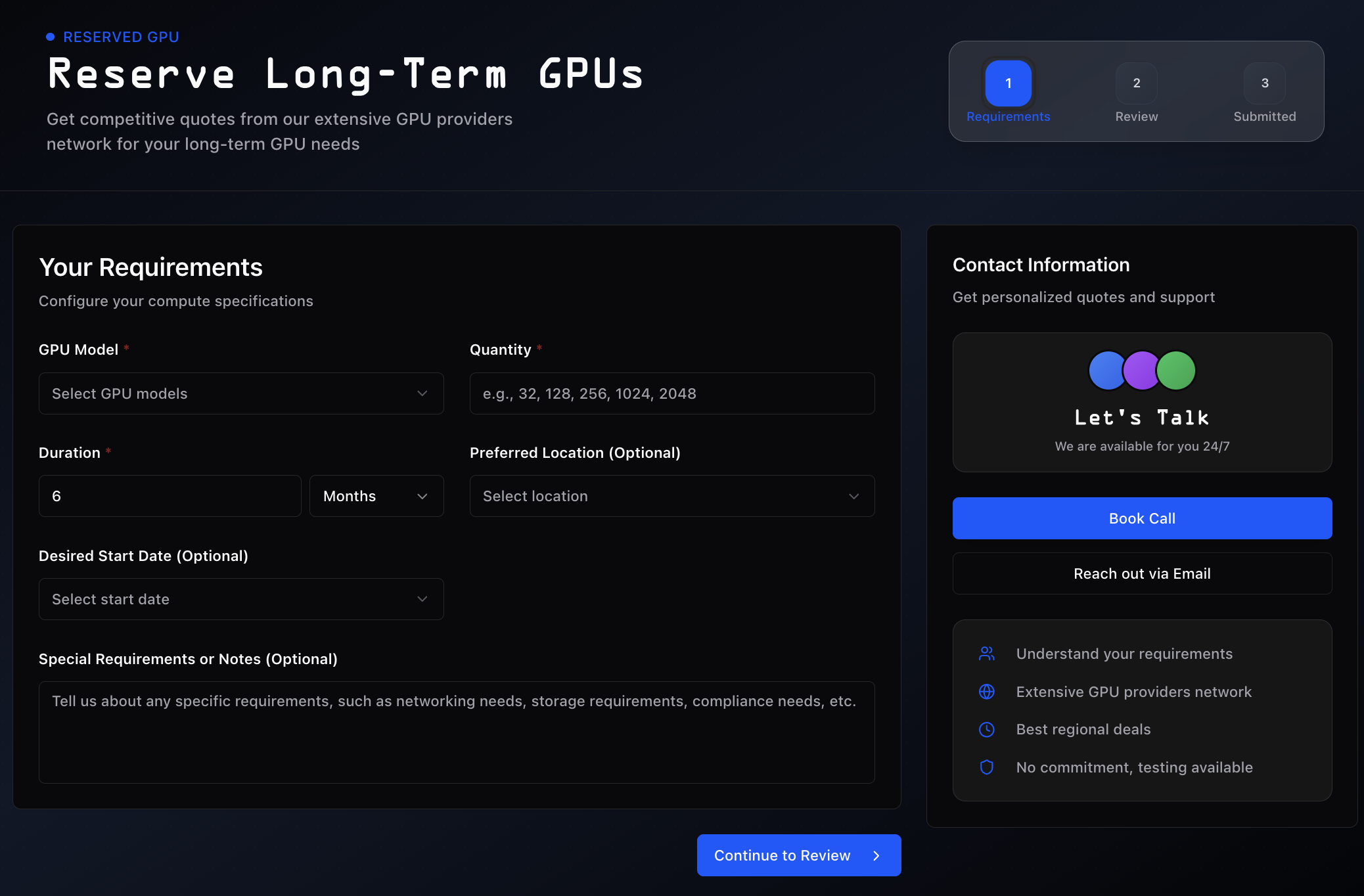
Enter your requirements
| Field | Options |
|---|---|
| GPU Model | Select one or more: R100, B300, B200, GB300, GB200, H200, GH200, H100, A100, RTX PRO 6000, RTX 6000 Ada, RTX 5090, RTX 4090, RTX A6000, L40S, MI300X |
| Quantity | 8 GPUs (1 node) minimum, 1,000 maximum. A link from a featured offer can lower the minimum to 1 GPU. |
| Duration | A number, in Months or Years |
| Preferred Location | North America, Europe, Asia Pacific, South America, Middle East, Africa, or Any Location (optional) |
| Desired Start Date | From ASAP to Within 12 Months |
| Special Requirements or Notes | For example InfiniBand, compliance needs, or storage (optional) |
Add contact information
If you are signed out, enter your email address, company name, and phone number with its country code. You can add notes.
Review and verify
Review your request and edit any field. Submit it, then enter the code sent to your email to verify the request.
The Spheron team reviews your request and contacts you by email.
Support and consultation
For complex requirements, schedule a 30-minute consultation with the Spheron team to discuss GPU selection, quantity, and terms.
Frequently asked questions
Q: Is my bid price visible to other bidders?
A: No. Other teams see only how many slots and nodes are taken, never prices or bidder names.
Q: Does the highest bid always win?
A: No. A higher price improves your chance, but the Spheron team decides allocation.
Q: Can I lower my bid?
A: No. You can only raise your price or node count. To start over, withdraw the bid while bidding is open and place a new one.
Q: When do I lose the bid hold?
A: Only if you are allocated and leave the booking invoice unpaid.
Q: Can I manage bids through the API?
A: No. Bids, agreements, and alerts work in the dashboard only.
Q: Does the person who places the bid have to sign the agreements?
A: No. Every bid names a signatory, who can be someone else at your company. The agreements go to them.
Q: What if I need fewer than 8 GPUs?
A: Deploy on demand from the GPU catalog. Reserved capacity starts at one 8-GPU node.
What's next
- Billing: add your company tax ID and manage your balance
- Teams: owner and admin roles
- GPU demand board: for providers, the demand behind reserved requests
- Cost optimization: GPU tier selection and spend strategies
- General information: support and official channels
Troubleshooting
Issue: "Cluster bidding is invite only."
Symptoms: The Reserved GPU page shows a blurred list with an Email us for access card. Diagnosis: Your account email does not have bidding access, or the email is not verified yet. Resolution: Email info@spheron.ai to request access. If access was granted, verify your email address, then click I have verified it.
Issue: Your signatory cannot open the signing link
Symptoms: The signing page reports the wrong account, or the link no longer works. Diagnosis: The link works only for an account with the email you named, and only the most recent link works. Resolution: Ask your signatory to sign in with the named email. If needed, click Resend or Change signatory.
Issue: The bid asks for company details
Symptoms: The bid panel shows Add company details instead of Place bid. Diagnosis: No tax ID is on file for your team. Resolution: Ask a team owner or admin to add the tax ID in Billing > Billing Details > Manage on Stripe.
Issue: The balance is below the bid hold
Symptoms: The review step shows "Your balance is $X, below the $Y bid hold. Top up before placing this bid.", or the bid is refused with "You need at least $X in your balance to cover the bid hold on this cluster." Diagnosis: Your team balance is below the cluster's bid hold. Resolution: Add credits, then place the bid again.
Issue: "Your team already has a live bid on this offer."
Symptoms: A second bid on the same cluster is refused. Diagnosis: Each team can hold one live bid per cluster. Resolution: Raise your existing bid instead.
Issue: "Another team from your organisation already has a live bid on this offer."
Symptoms: The bid is refused although your team has no bid on the cluster. Diagnosis: Another team that shares a member or a company email domain with yours already bid. Resolution: Coordinate with that team and raise their bid instead.